Create a dataset from CSV upload
While connecting to a data warehouse is powerful, sometimes you need to analyze a standalone file or test data quickly. Cotera allows you to upload CSV files directly, turning static spreadsheets into interactive datasets ready for analysis and agents.
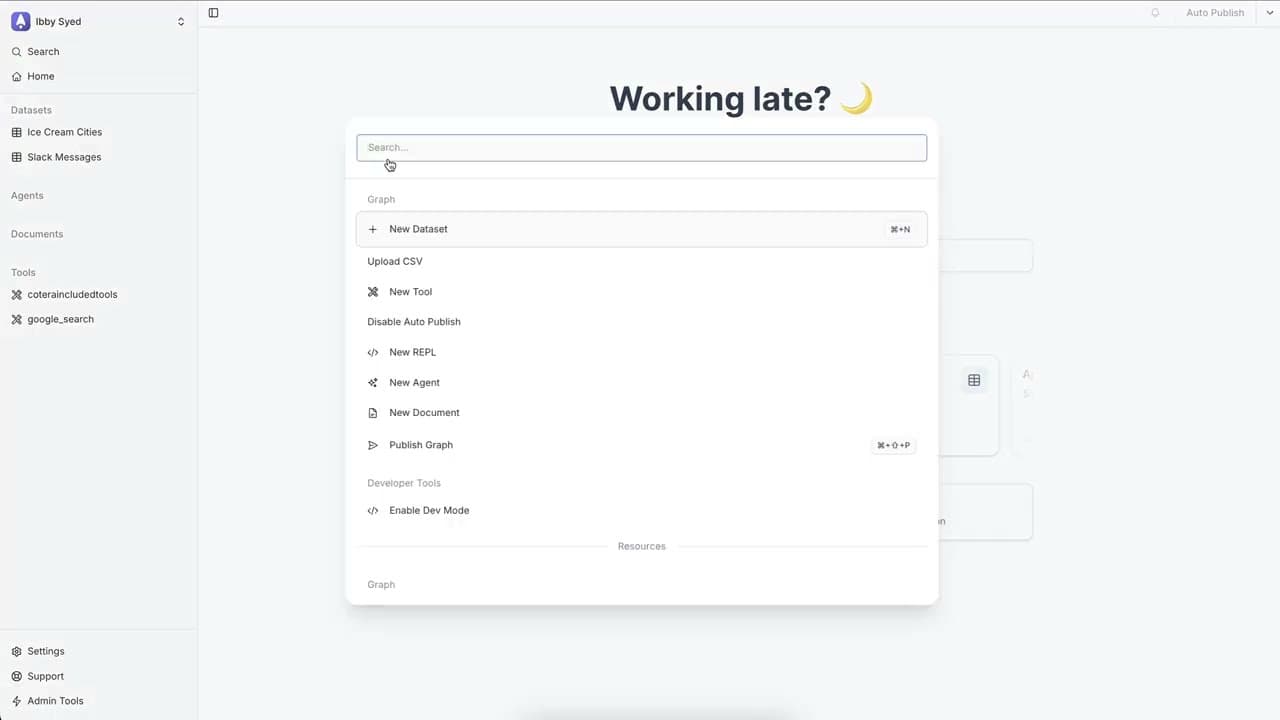
Accessing the New Dataset Menu
You can begin the import process in one of two ways:
- Keyboard Shortcut: Press
Cmd+K(Mac) orCtrl+K(Windows) to open the command palette, then select New Dataset - Sidebar Menu: Hover over the Datasets section in the left sidebar and click the + button
Uploading Your File
Once the dataset interface is open, look for the Create dataset from CSV upload button in the top right corner.
- Click the button to open the upload modal
- Drag and drop your CSV file directly into the window, or click to browse your local files
- Select the file you wish to import (e.g.,
birthdays.csv)
Configuring the Dataset
After the file uploads, you will be asked to configure the table:
- Dataset Name: Give your dataset a clean, descriptive name (like "Birthdays")
- Database Table Name: This usually auto-populates based on your file name, but you can edit it if necessary
- Click Create Dataset to finalize the import
The Result
Your data will immediately load into the main view, displaying your rows and columns (such as Name and Birthday) in a structured grid. The new dataset is now saved in your workspace and will appear in the Datasets list on the left sidebar, ready to be used by your agents.