Getting started with agents in datasets
LLM agents in Cotera become significantly more powerful when you chain multiple tools together. While a single tool can fetch data, a multi-tool agent can act as a complete research loop: searching for information, visiting websites to read content, analyzing the findings, and returning data in a specific, machine-readable format.
What You'll Build
In this guide, you will learn the architecture of a "Research, Analyze, and Report" agent. You will build an agent that:
- Iterates through a dataset (like a list of cities)
- Uses search and scraping tools to find specific answers
- Takes action (like sending an email)
- Saves the result in a strict, structured format
Prerequisites
Before starting, make sure you have:
- A Cotera account with access to agents and tools
- A dataset to iterate over (e.g., a CSV list of cities, companies, or topics)
Step 1: Initialize the Agent
Navigate to your dataset and prepare the column that will house your agent.
- Click the + button on your table to add a new column
- Select LLM Agent from the menu
- Name Your Agent: Give it a descriptive name (e.g., "Market Researcher")
- Select a Model: Choose a capable model (e.g., GPT-4o or GPT-5) that can handle complex reasoning and multiple tool steps
Step 2: Finding and Installing Tools
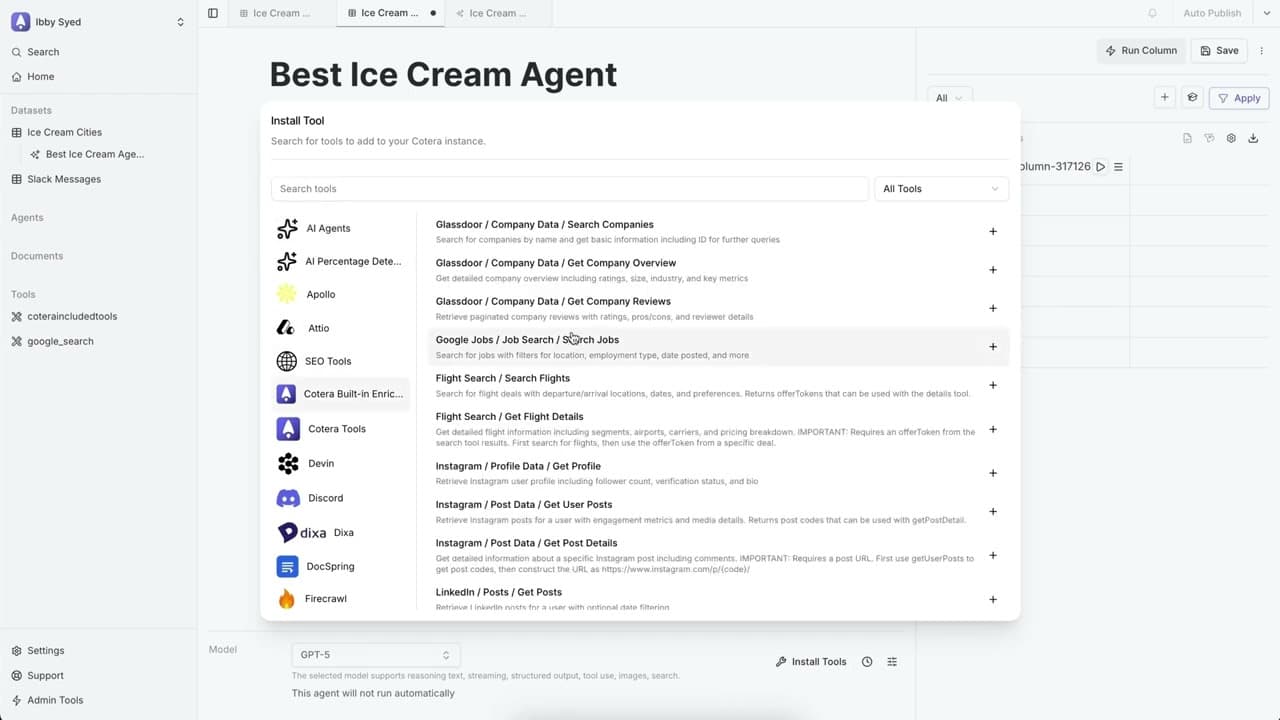
Before writing your prompt, you need to ensure your agent has the right equipment. Tools come in two categories: those already in your workspace and those you need to install.
To add a new tool (like a web scraper):
- Click the Install Tools button (or the tools menu icon) in the agent interface
- Search for the functionality you need (e.g., "Scrape")
- Select the tool, such as Cotera Built-in Enrichments / Scrape Website
- Click to add it—this often provides a specific "handle" or code snippet to use in your prompt
Step 3: Crafting the Prompt
The System Message is the brain of your agent. You will build this prompt layer by layer.
Define the Persona and Variables
Start by telling the agent what it is. To link the agent to your data, type { to see your list of columns:
You are a research agent. I will give you a {City} and {State}.
The variable names will highlight in yellow when linked correctly to your dataset columns.
Reference Your Tools
To tell the agent to use a tool, type @. This opens the tool dropdown:
First, use the @Google Search tool to find the "best ice cream" in this location.
Chain the Logic
Explain how the output of one tool should become the input of the next:
Once you have the search results, use the @Scrape Website tool to visit the top URLs and read the reviews.
Add an Action (Optional)
You can instruct the agent to communicate outside of Cotera:
Finally, use the @Email tool to send a summary to my.email@example.com.
Step 4: Structuring the Output
One of Cotera's most powerful features is forcing the LLM to return data in a specific computer-readable format, rather than just chatty text. This makes your data sortable and filterable.
To define your output, click the { } icon to open the output structure menu.
You can select from several data structures:
| Type | Best For |
|---|---|
| String | Summaries, emails, or free-form text answers |
| Boolean | Binary decisions (e.g., "Is this company hiring? True/False") |
| Enum | Forcing the agent to choose from a pre-set list of options (e.g., "High Priority," "Medium Priority," "Low Priority") |
| Object | Structured JSON objects with defined keys (e.g., shop_name, rating) |
| Array of Objects | A list of structured items (e.g., a list of 5 different products found on a single page) |
Example: If you want the agent to return the name of the best business found, select String. If you want it to return the business name and its address, select Object and define those fields.
Step 5: Save and Run
- Save: Click the Save button in the bottom right
- Run: Click Run Now on the column
Monitoring the Agent
As the agent processes your dataset, you can watch it think in real-time. You will see status updates in the cell indicating which tool is currently active:
- Thinking...
- Searching Google...
- Scraping website...
- Sending email...
What You've Built
You have moved beyond simple text generation. By combining tools (external access) with structured outputs, you have built an autonomous research agent that:
- Reads your database
- Navigates the live internet
- Performs actions
- Returns clean data ready for analysis