Quick Actions
The essential operations you'll use regularly: saving your work, publishing changes, renaming, and deleting.
Save vs. Publish
Cotera separates saving your work from deploying it, giving you control over when changes go live.
Saving Changes
Preserve your configuration work:
- Save button: Top right corner of the editor
- Keyboard shortcut: ⌘S (Command + S)
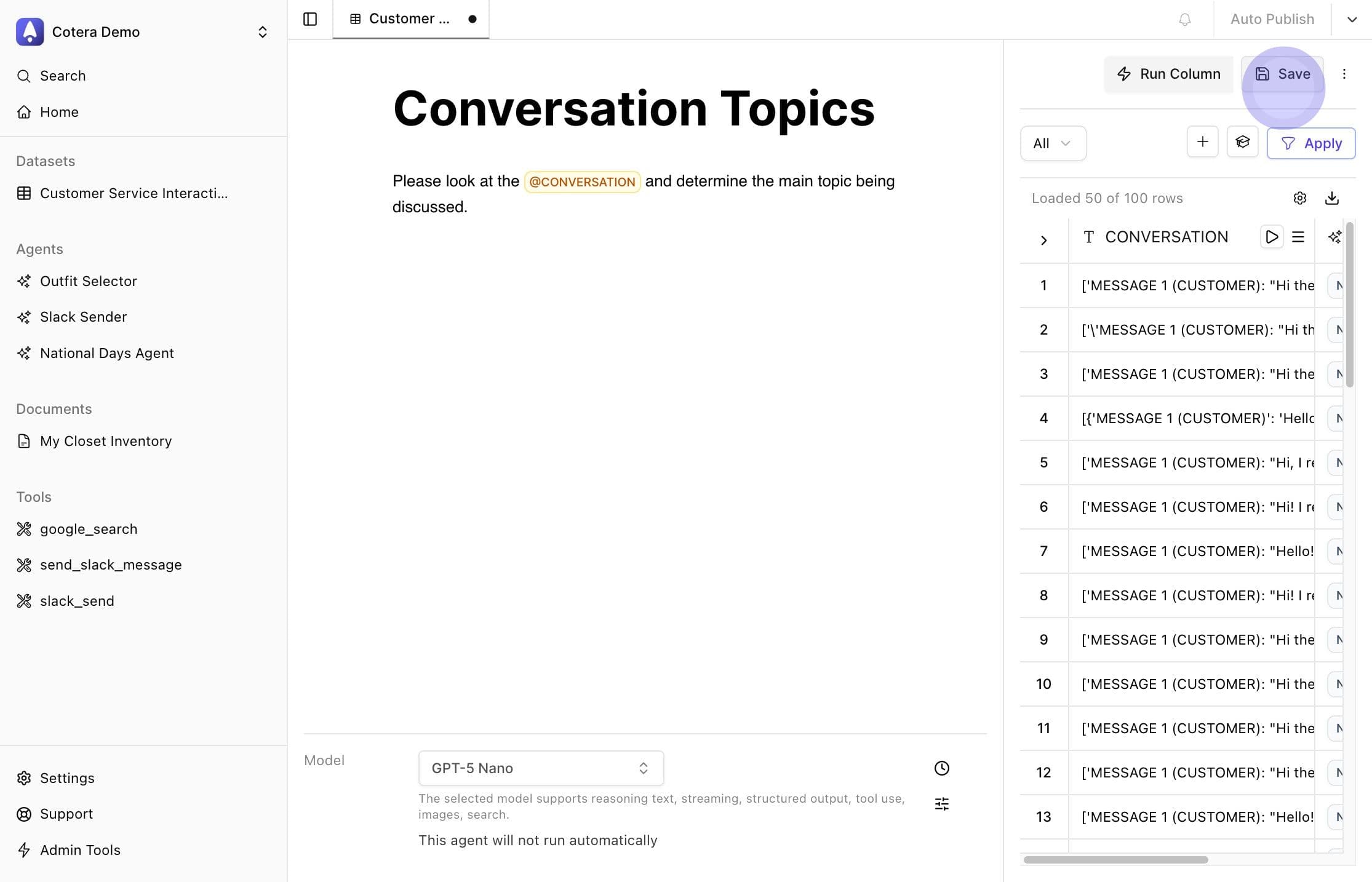
The activity dot on your tab disappears once changes are saved.
Publishing Strategy
The publish toggle in the top right corner controls how your saved changes deploy:
Auto-publish enabled (recommended): Saving immediately deploys changes to your dataset. This is the standard workflow when you've tested your logic using preview.
Auto-publish disabled (for experimental work): Saving stores changes locally without deployment. Use this when testing configurations you're not ready to run on live data. Click Publish explicitly when ready to deploy.
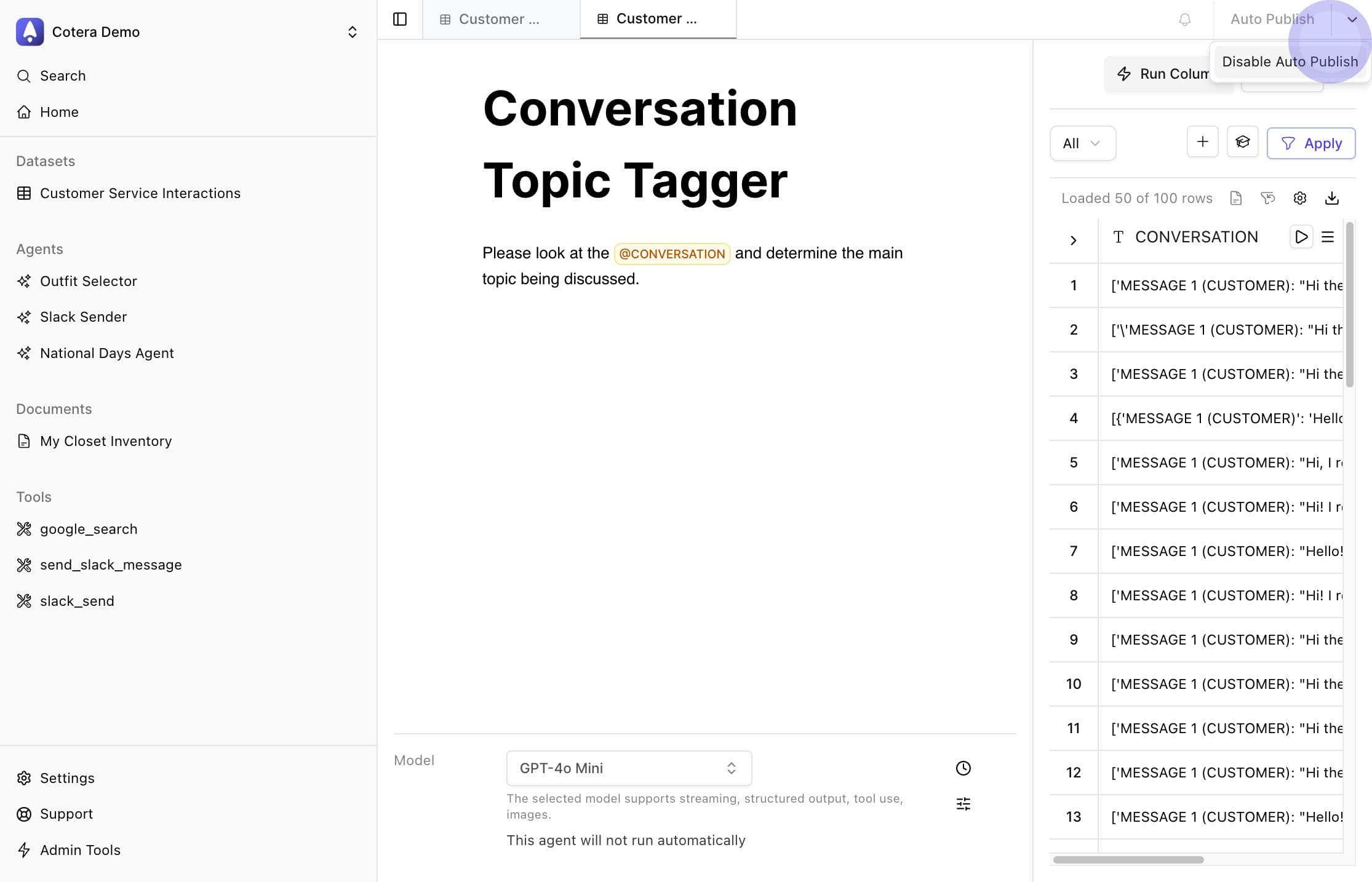
Best practice: Always test your logic before saving with auto-publish enabled.
Rename
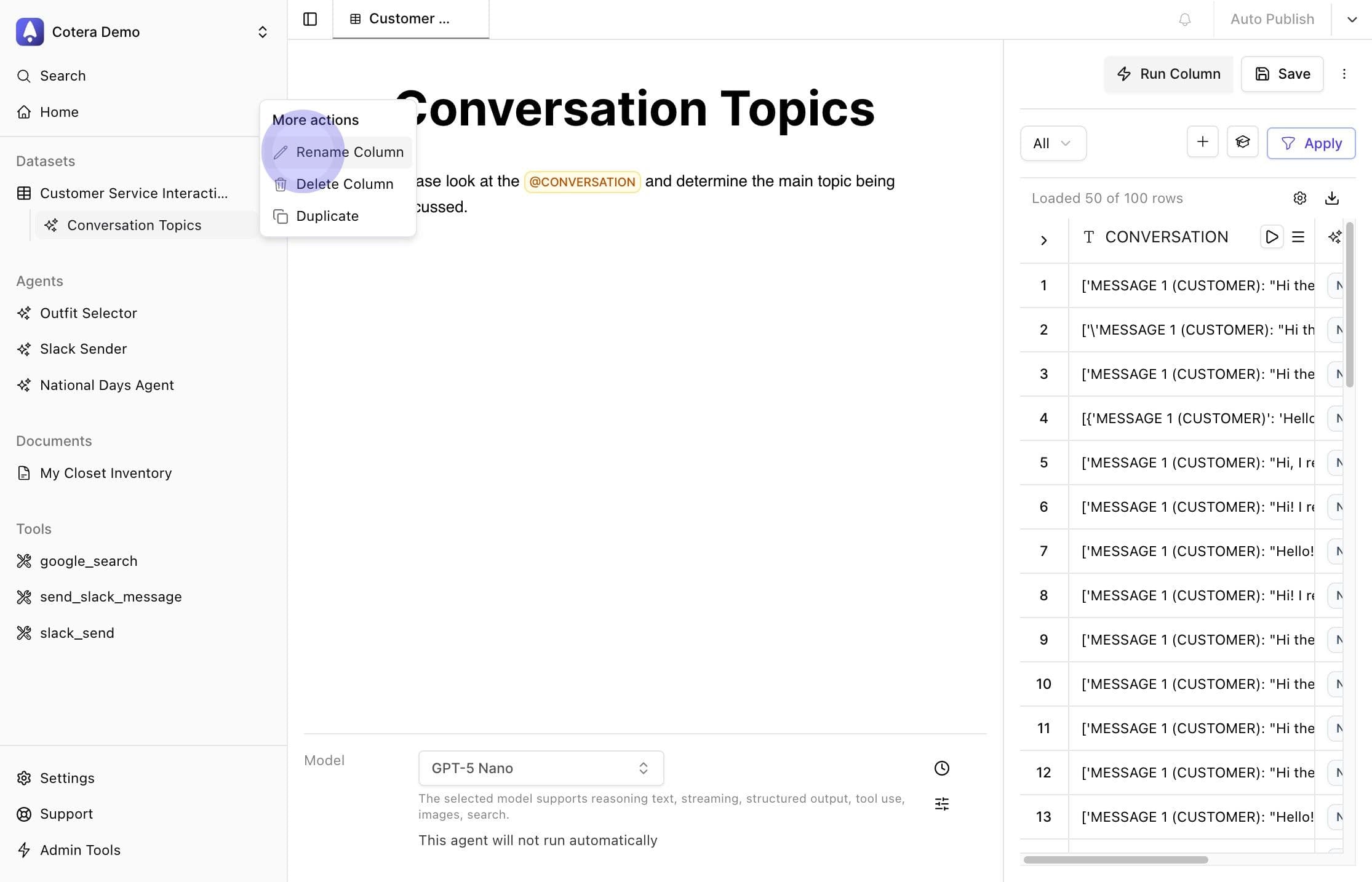
Change column names to maintain clarity as your workflows evolve.
- From the sidebar: Hover over the column name and click the three-dot menu, then select "Rename"
- Using Command Palette: Press ⌘K and search for "Rename"
Delete
Remove columns you no longer need.
- From the sidebar: Hover over the column name and click the three-dot menu, then select "Delete"
- Using Command Palette: Press ⌘K and search for "Delete"
You'll need to type the column name to confirm deletion, preventing accidental removal.
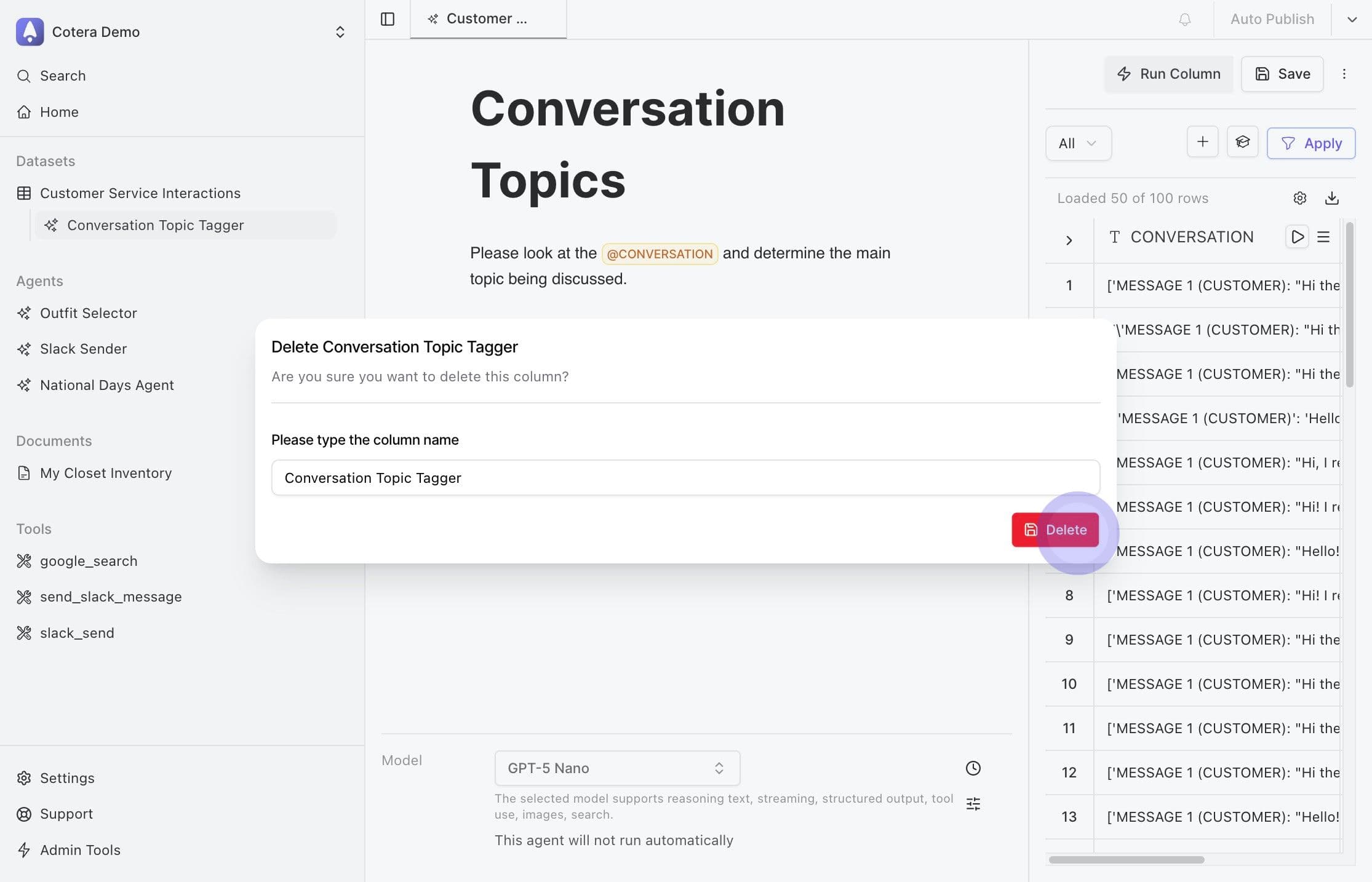
Warning: Deletion cannot be undone. The column configuration and all processed data are permanently removed.
Keep in Mind
When renaming or deleting columns, consider any downstream columns or workflows that reference them.