How to use a tool
Tools in Cotera serve as the bridge between your agents and the outside world. While agents are powerful on their own, tools allow them to fetch live data, interact with APIs, and perform enrichments. This guide covers the different methods for installing tools and how to invoke them within your agents.
Getting Started
There are three primary ways to access the tool library and add new capabilities to your workspace:
- Sidebar: Click the + icon next to the "Tools" section in the left sidebar
- Command Palette: Press
Cmd+K(Mac) orCtrl+K(Windows) and type "New Tool" - Agent Editor: Inside any agent, click the Install Tools button in the top navigation bar
Step 1: Installing Built-in Enrichments
Many tools in Cotera, such as Similarweb, are "built-in enrichments" that do not require external API keys.
Selecting the Tool
Navigate to the tool library using one of the methods above. Search for Similarweb (or any other enrichment tool).
Adding to Workspace
Click on the tool card. You will see a confirmation message that the tool has been added to your workspace. These tools are immediately ready for use.
Step 2: Invoking Tools in Chat
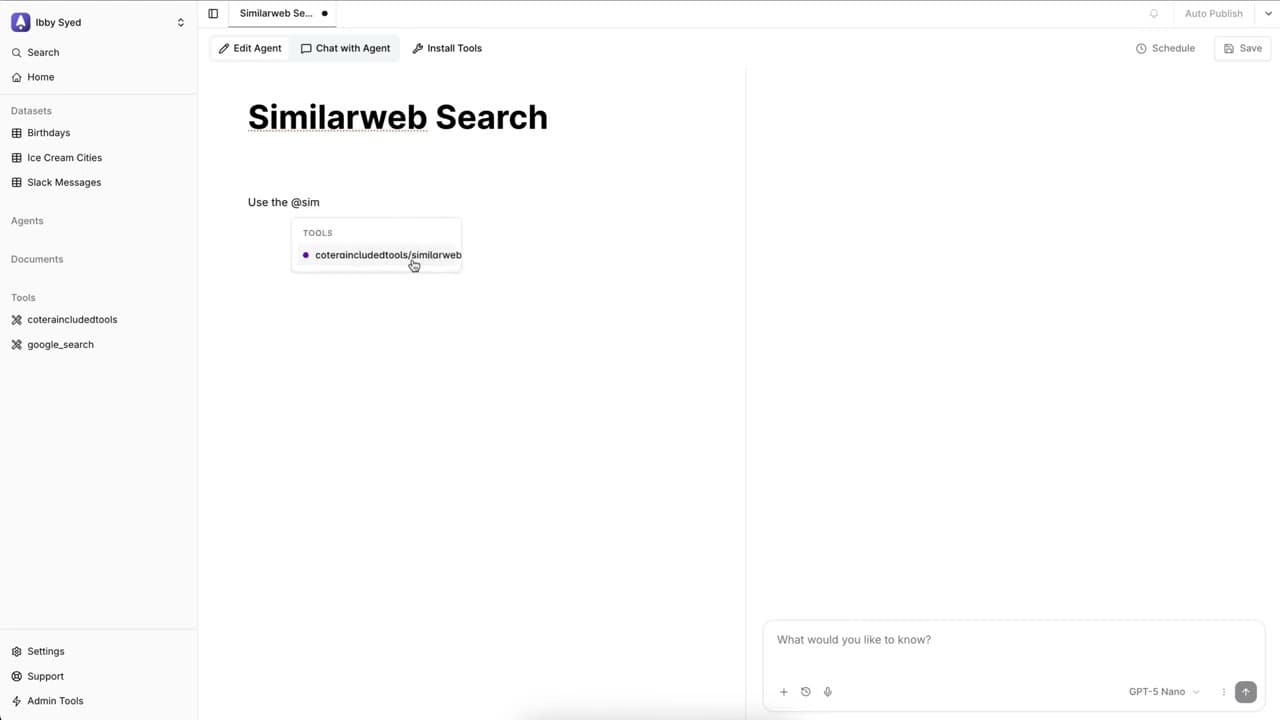
Once a tool is installed, you can direct an agent to use it using the @ symbol.
Referencing the Tool
In the chat or system message window, type @. This opens a dropdown menu of all available tools in your organization.
Constructing the Prompt
Select the tool you just added (e.g., Similarweb Search) and write a natural language prompt instructing the agent on how to use it:
Use the @Similarweb Search tool to find me similar sites to the site I give you.
Running a Test
Enter a target website to test the tool connection:
- Input:
microsoft.com - Action: The agent will execute the tool call, retrieve the data, and display the results (e.g., office.com, google.com, amazon.com)
Step 3: Installing Authenticated Tools
Some tools connect to third-party services that require authorization, such as Snag Solutions, Salesforce, or custom APIs.
Configuration
When you select a tool that requires authentication from the library:
- API Key: Enter your specific API key or credentials in the provided field
- Display Name: Give the connection a recognizable name (e.g., "Snag Production")
- Submit: Click Submit to save the credentials
Once saved, this authenticated tool becomes available in your tool list and can be referenced using the @ symbol just like the built-in enrichments.
What You've Built
You now have a workspace equipped with external capabilities that allow you to:
- Quickly add tools via the sidebar or command palette
- Enrich data using built-in integrations like Similarweb without complex setup
- Authenticate external services to bring private or paid API data into your workflows
- Seamlessly prompt agents to utilize these tools using natural language and the @ mention feature
Next Steps
Now that you know how to install tools, try combining them:
- Stacking Tools: Use a search tool to find a company, then use an enrichment tool to find their contact info
- Agent Columns: Apply these tools to a dataset column to process hundreds of rows at once