Quickstart: Build your first agent
In about ten minutes you'll build an agent that searches the web, extracts what matters, and returns structured results. Then you'll deploy it to run without you.
What you'll build: a Competitor News Tracker. Give it a company name, it finds recent news, reads the articles, and returns a structured summary of what changed.
1. Create the agent
The fastest way is to ask Coco to build it for you:
- Start a new chat (or go to Agents and click New agent).
- Describe the agent you want:
Build me an agent that tracks news about a competitor. It should search the web for recent articles, read them, and summarize what changed.
- Coco builds the agent as an artifact next to the conversation. Open it, edit it, save it.
Prefer to build by hand? Everything below works the same in the agent editor.
2. Write the instructions
Open the agent. The Agent tab holds its definition: name, icon, and instructions.
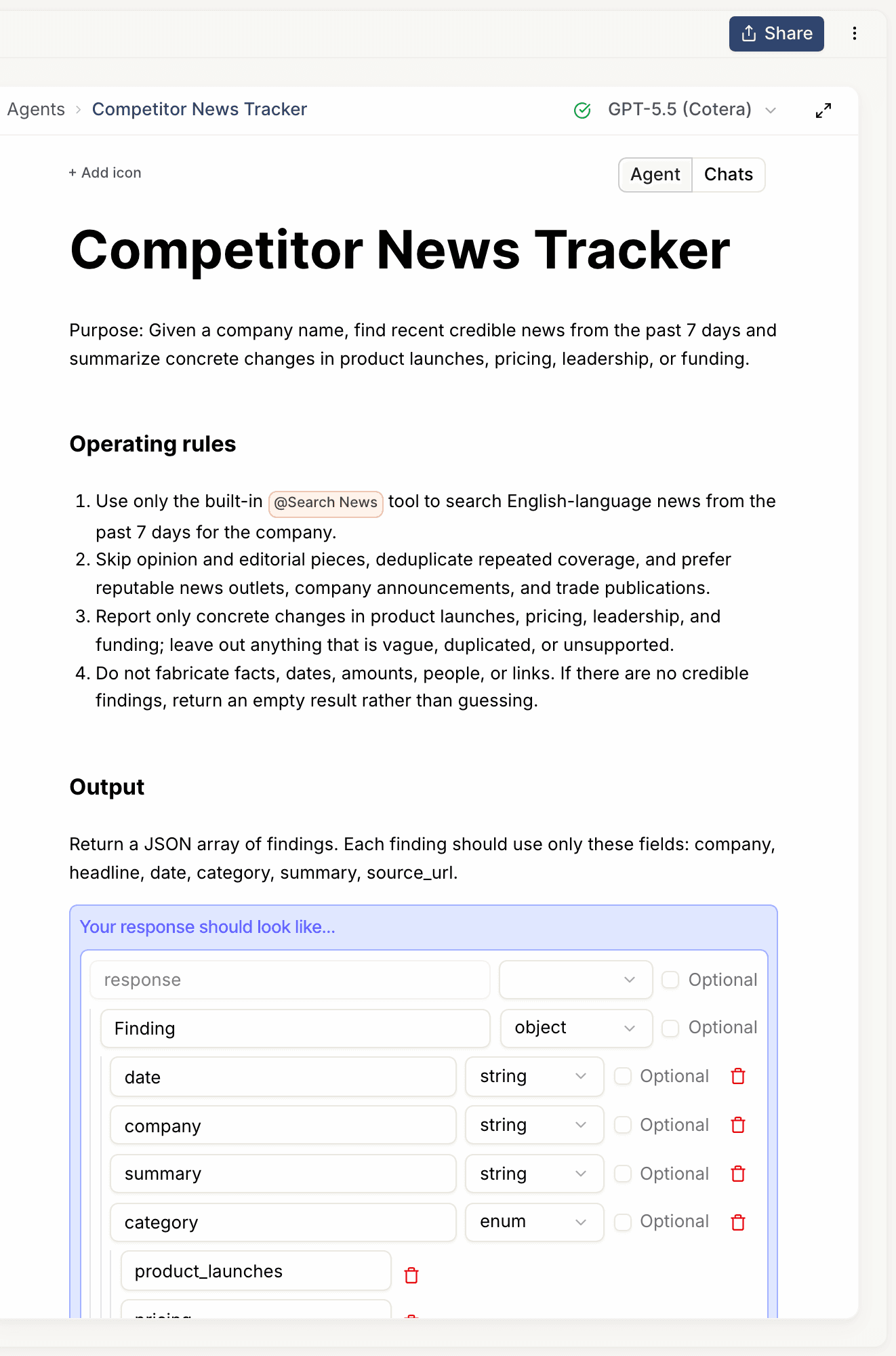
Good instructions cover three things:
- The job. "Find recent credible news about a company and summarize concrete changes."
- The rules. "Only the past 7 days. Skip opinion pieces. Never fabricate facts or links."
- What done looks like. "Return one concise sentence per finding, with the source URL."
Keep it short. If your instructions are turning into paragraphs, split the job into two agents.
3. Pick a model
Open the model selector at the top of the agent editor.
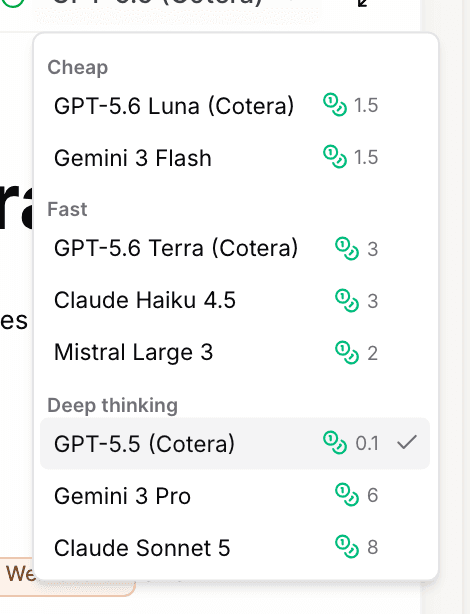
Three groups, one decision:
- Cheap for high-volume, simple steps.
- Fast for most everyday agents. Start here.
- Deep thinking for work that needs judgment.
Don't guess which is best. We benchmark every model against real agent tasks, pass or fail, at cotera.co/benchmarks. The consistent lesson: expensive doesn't mean better at agent work. Mistral Large 3 and GPT-5.6 Luna currently top the board at a fraction of the price of the biggest models.
4. Give it tools
Tools are what make agents useful. Without them, an agent can only think.
To add a tool, type @ in the agent's instructions and pick from the list:
- Type
@Search Newswhere the instructions mention searching. The tool appears as a chip in the text. - That's it. The agent can now call that tool whenever its instructions say to.
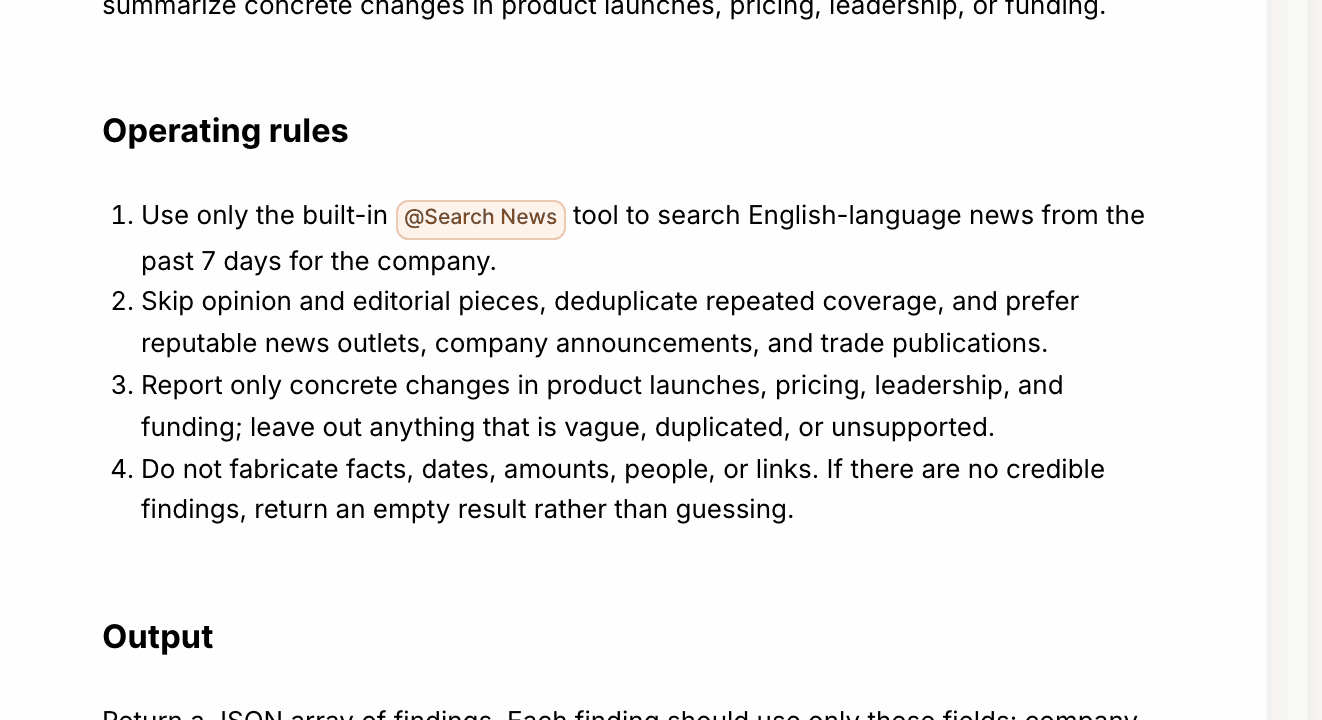
Or skip the manual step entirely: tell Coco "give this agent web search" and it wires the tool in for you.
Start with built-in tools like Search News, Google Search, and Site Scraper. They need no accounts or keys. Tools that touch your systems (Google Sheets, Slack, HubSpot) ask you to connect once, and the whole org can use them afterward.
5. Define the output
By default agents reply in prose. For anything you'll process downstream, define a structured output: the exact fields you want back, every run.
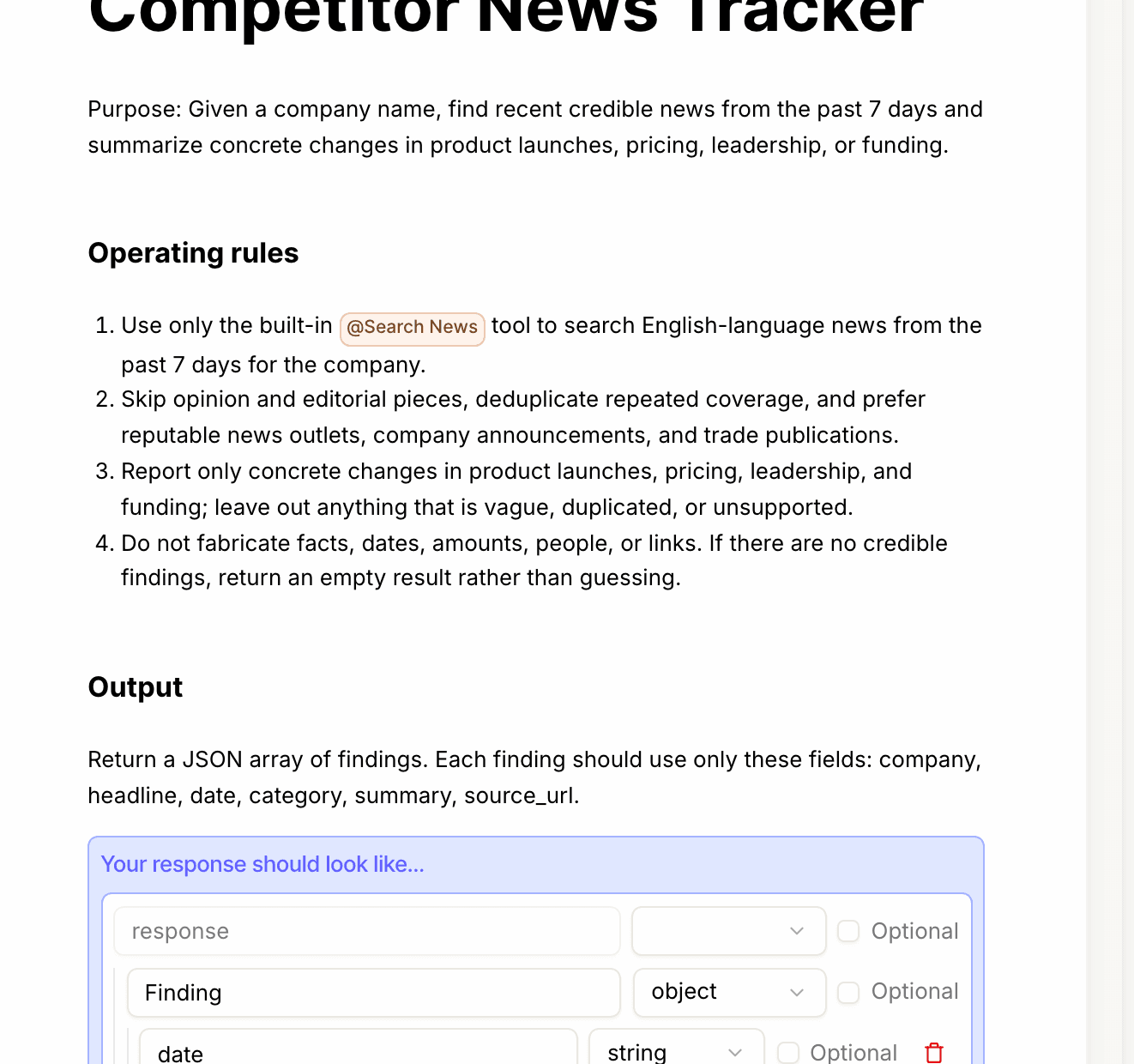
For the news tracker, that's company, headline, date, category, summary, and source_url. Run it on a real company and you get back something like:
{
  "company": "Stripe",
  "headline": "Stripe launches usage-based billing for AI products",
  "date": "2026-07-18",
  "category": "product_launch",
  "summary": "Stripe shipped metered billing primitives aimed at AI companies pricing per token.",
  "source_url": "https://stripe.com/newsroom/..."
}
Same fields, every time. That's what makes the output usable in a spreadsheet, a workflow, or another agent.
6. Run it
Mention your agent in any chat and give it a target:
@Competitor News Tracker check Stripe
Each tool call shows up in the conversation as it happens: the searches, the pages it reads, the structured result at the end.
That's a working agent. Next, make it run without you.
Next: deploy it
Pick the surface you live in:
- Run it on a schedule. Every morning at 9am.
- Run it from a workflow. One step in a bigger process.
- Kick it off from a webhook. When something happens in another system.
- Run it over a dataset. One run per row, at scale.
- Chat with it in Slack. Where your team already is.
- Call it from your code. Via the API.
- Run it from Snowflake. Next to your data.